Lost Device Location Passcode Scam
A message tells someone whose phone is lost or stolen that the device has been found, and links to a page that imitates a phone-finding service. The page shows an animated map and a device marked online, then asks for the phone's own unlock passcode, described as a "security code," before it asks for anything else. Some versions then also ask for the account email address and password. The location and device shown on the page are written into the page in advance and are the same for every visitor; the page does not know where any phone is. A phone's unlock passcode can be used on the device itself to change the linked account password and switch off phone-finding features, so losing it can cost the owner both the device and the account.
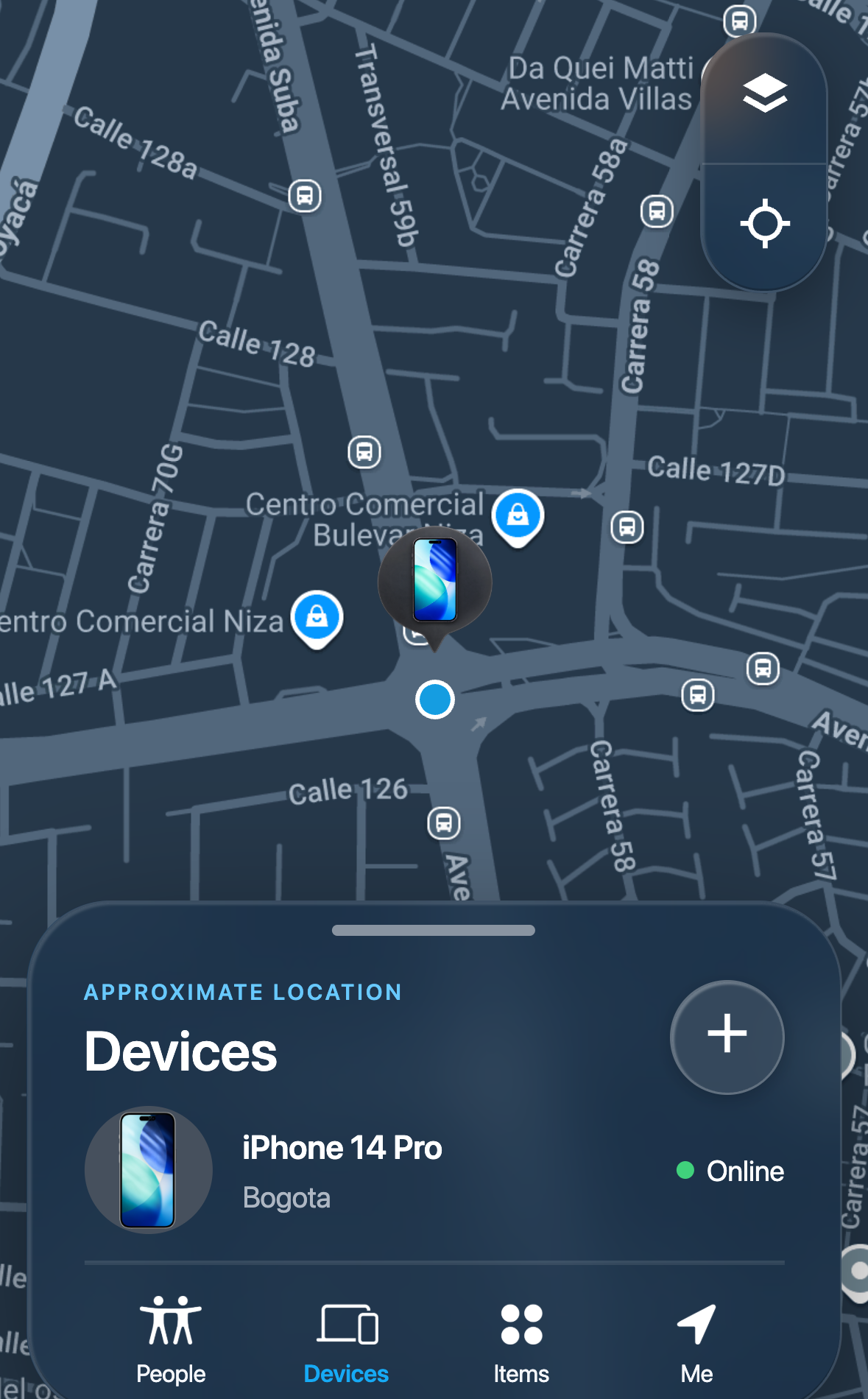
How this scam works
- 1
Step 1: A phone is lost or stolen and the owner marks it missing, often adding a contact number to the lock screen.
- 2
Step 2: A message arrives saying the device has been located, with a link to a page that copies the look of a phone-finding service.
- 3
Step 3: The page shows a map that zooms in on a street and lists a device marked online, which makes it appear that the phone has genuinely been found.
- 4
Step 4: The page asks for the phone's unlock passcode, calling it a security code needed to view the location on the map.
- 5
Step 5: Whatever is entered the first time is reported as incorrect, so the code is typed a second time and the operator receives two copies to compare.
- 6
Step 6: Some versions then show a sign-in panel and ask for the account email address and password, sending the email address as soon as it is entered.
- 7
Step 7: The visitor is sent on to the real service's website, so nothing appears to have gone wrong.
✓ Do this
- Check a missing device only in the official finding app on another device you own, or by typing the official website address yourself.
- Treat the phone unlock passcode as the most sensitive code you have, not the least.
- Stop if a page rejects a code and asks you to enter it again; a repeated request is a reason to leave the page.
- Change the account password from a different device you trust, and change the device passcode, if either was entered into an unexpected page.
- Review the trusted devices and trusted phone numbers on the account and remove any that are not recognized.
✗ Avoid this
- Do not enter a phone unlock passcode into any web page, message, email, or caller, for any reason.
- Do not trust a device name, model, map, or online status shown on a page reached from a message; these can be written into the page in advance.
- Do not assume a page is genuine because a code was accepted or rejected; the page may not be checking the code at all.
- Do not use contact details or links supplied by the message to verify the claim.
- Do not act quickly because the page suggests the device is moving or about to go offline.
Different versions of this scam
1 example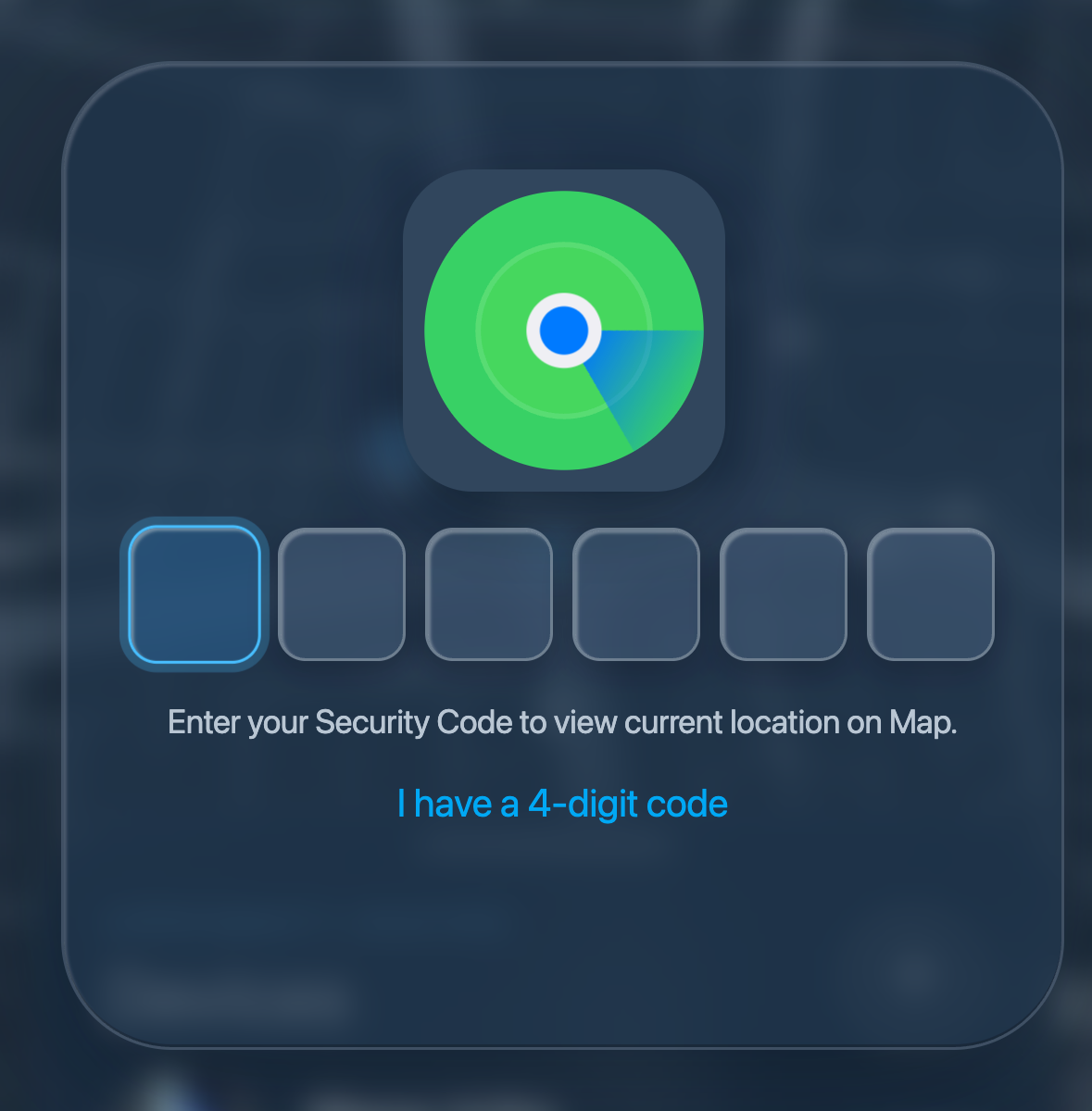
Other scams in Credential Harvesting
Other documented patterns in this category.
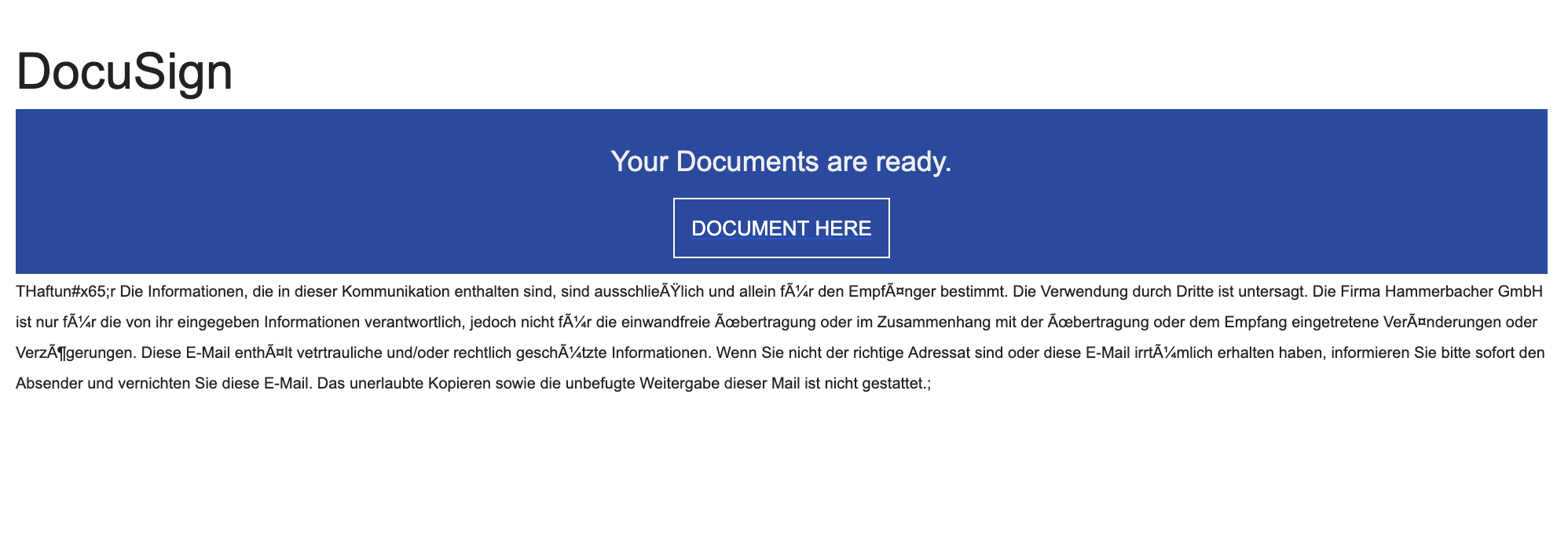 Documents Ready To Sign ScamAdded 2025-10-13You receive an email that looks like it’s from DocuSign (or another e‑signature service) saying “Your documents are ready to sign.” The b...
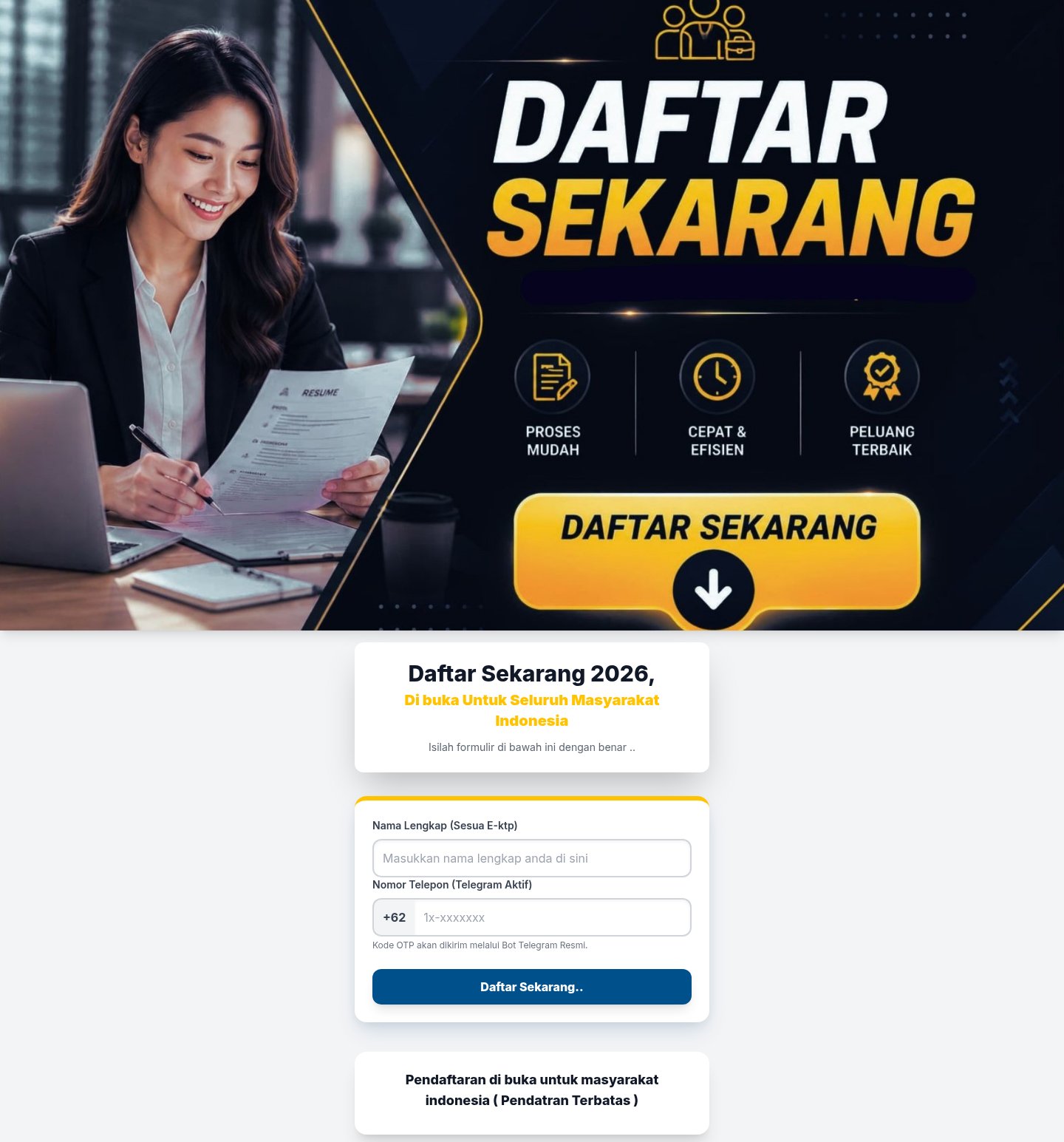 Messaging App Login Code Theft ScamAdded 2026-10-28A web page offers something you want, such as a place in a program, a job opportunity or a payout, and says you only need to register. To...
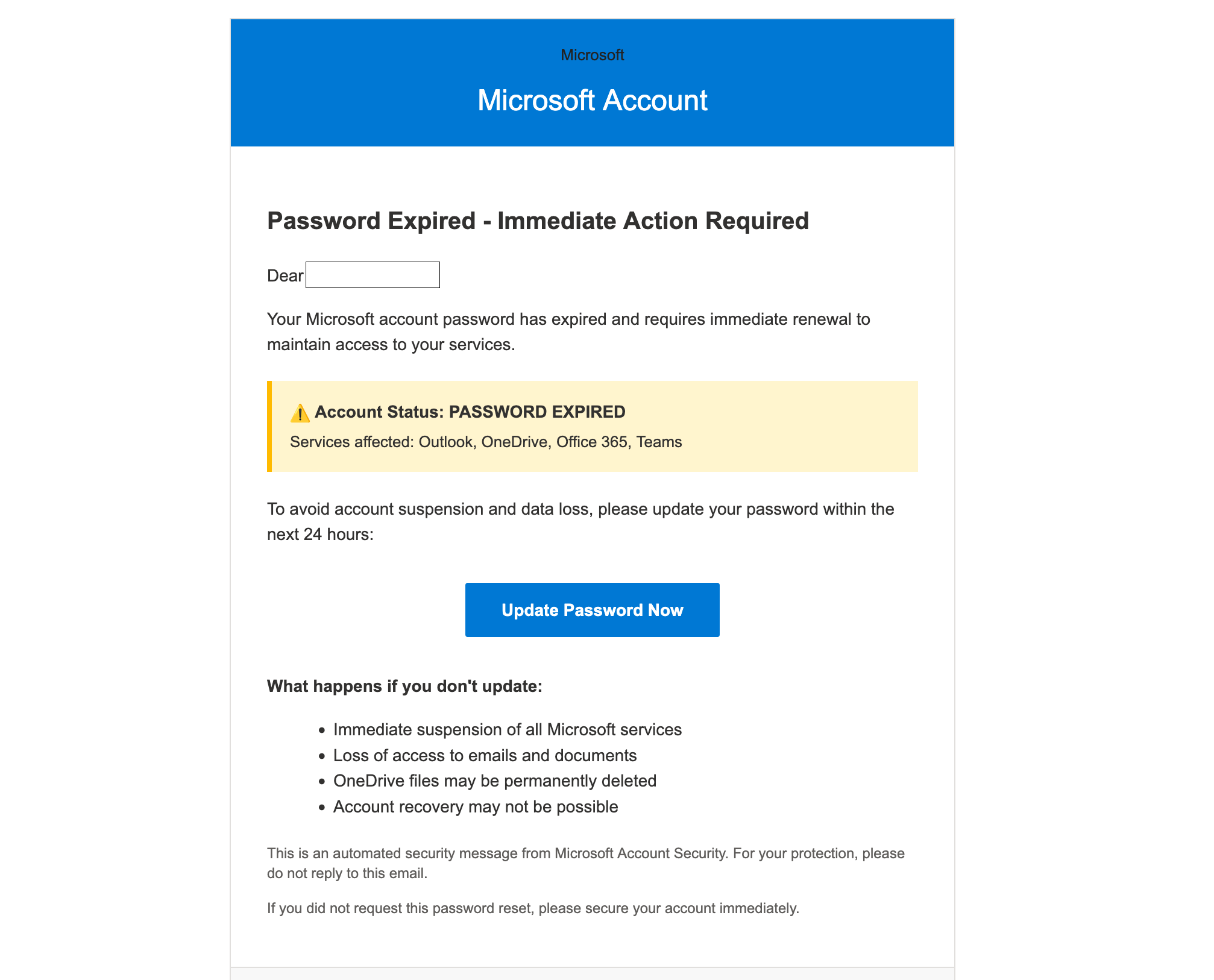 Microsoft Account Password Expired ScamAdded 2025-10-08You get an email that looks like it’s from Microsoft saying your password has expired and you must “Update Password Now” within 24 hours....
 School Email Account Deactivation ScamAdded 2024-06-06Scammers send emails pretending to be from a college or university IT department, warning students that their email account will be deact...
Recently added
Scam patterns added to the archive most recently.
 Fake Game Item Vote Login ScamPhishing · Added 2026-11-02A link takes you to what looks like a page on a gaming platform's community site, usually a fan-made weapon skin or other game item, with...
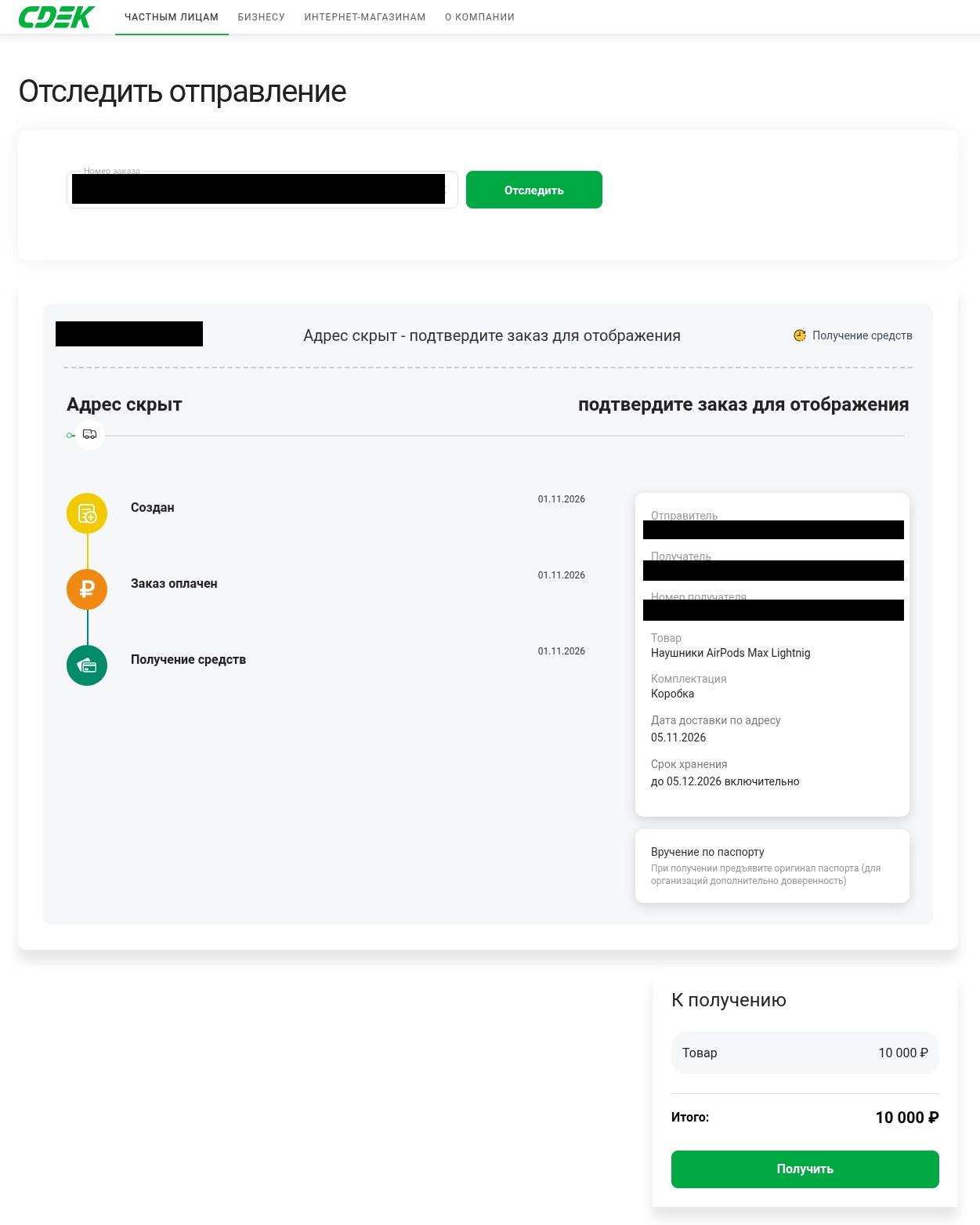 Fake Delivery Service Payout Page ScamMarketplace / Classifieds · Added 2026-11-01You are selling something online and a buyer, or someone posing as one, sends you a link to what looks like a delivery company's tracking...
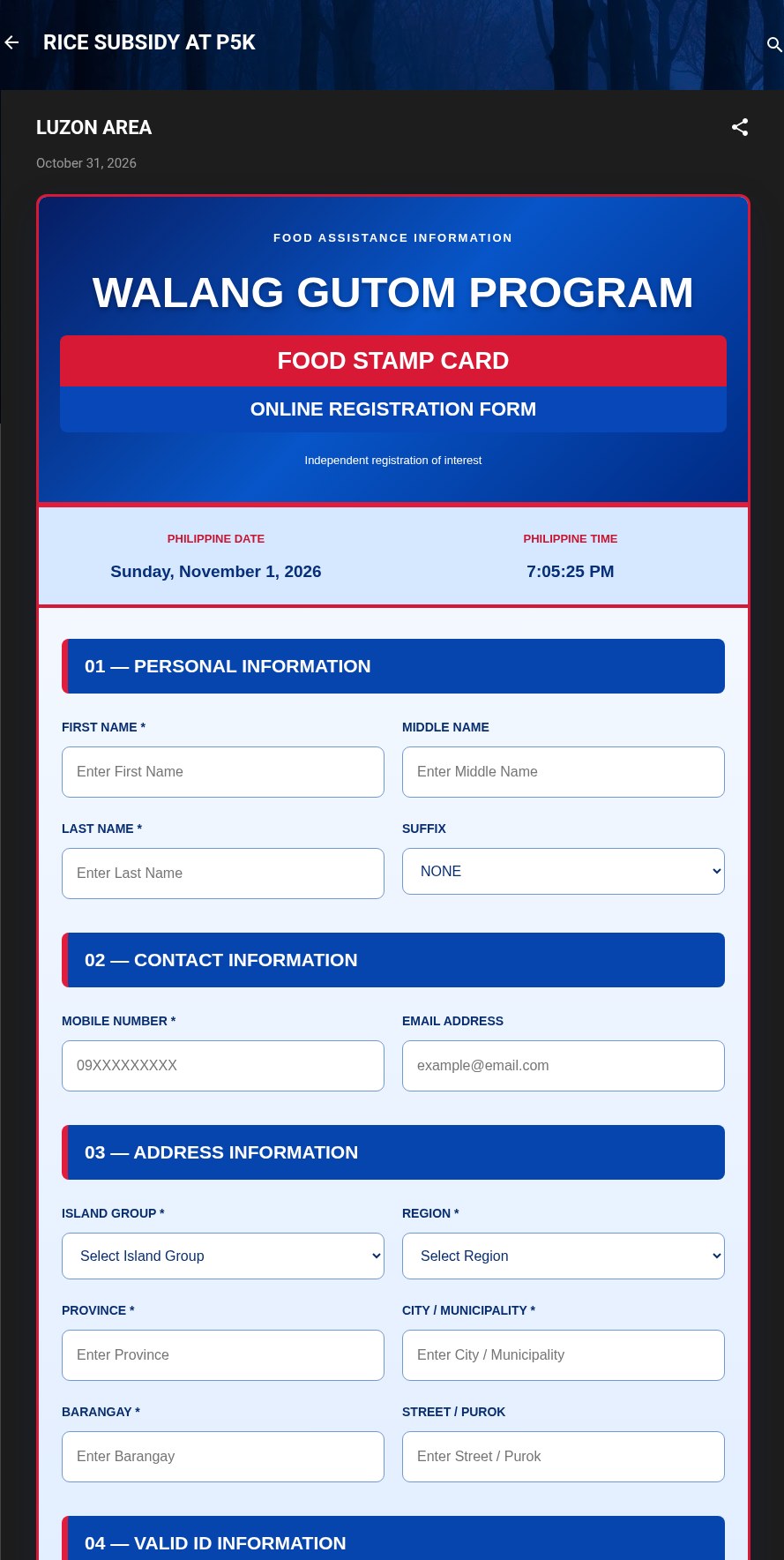 Fake Government Aid Registration Form ScamImpersonation / Social Media · Added 2026-11-01A web page or blog post uses the name of a real government aid program and says you can register online for food aid, a subsidy or cash a...
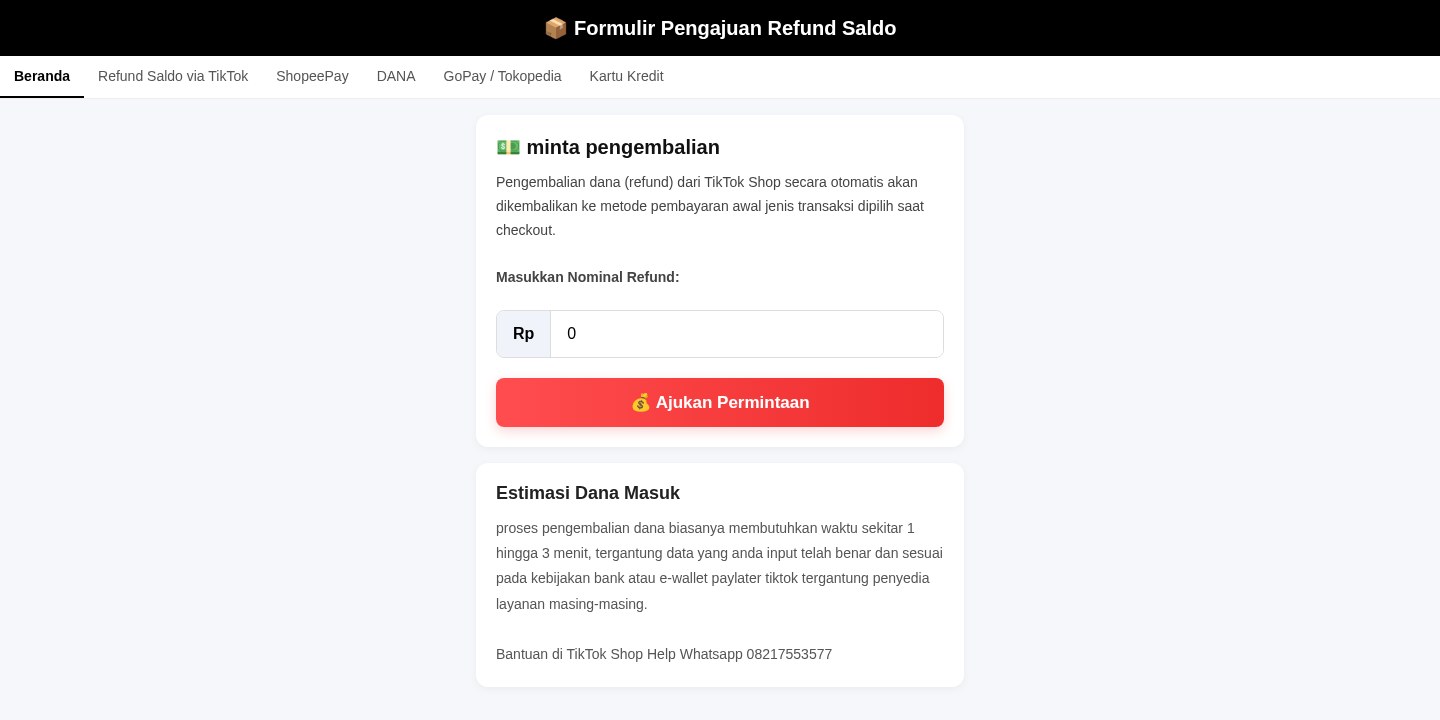 Fake Online Shop Refund Form ScamRefund / Invoice Bait · Added 2026-10-28A web page using the name of an online shop or marketplace says you can request a refund, get your balance back or have an order sent aga...
Need help with a similar message?
Do not reply, pay, or use contact details in an unexpected message. Verify through the official app or website, then report what you saw so the Archive can connect related patterns.
Quick tip: Verify independently
Don’t call numbers or click links in unexpected messages. Go directly to the company’s official site or app and contact support from there.