This is a version of Cloud-Hosted Phishing Page Scam in Phishing.
Fake OneDrive file page on Backblaze cloud storage that fills in your email and asks for your password
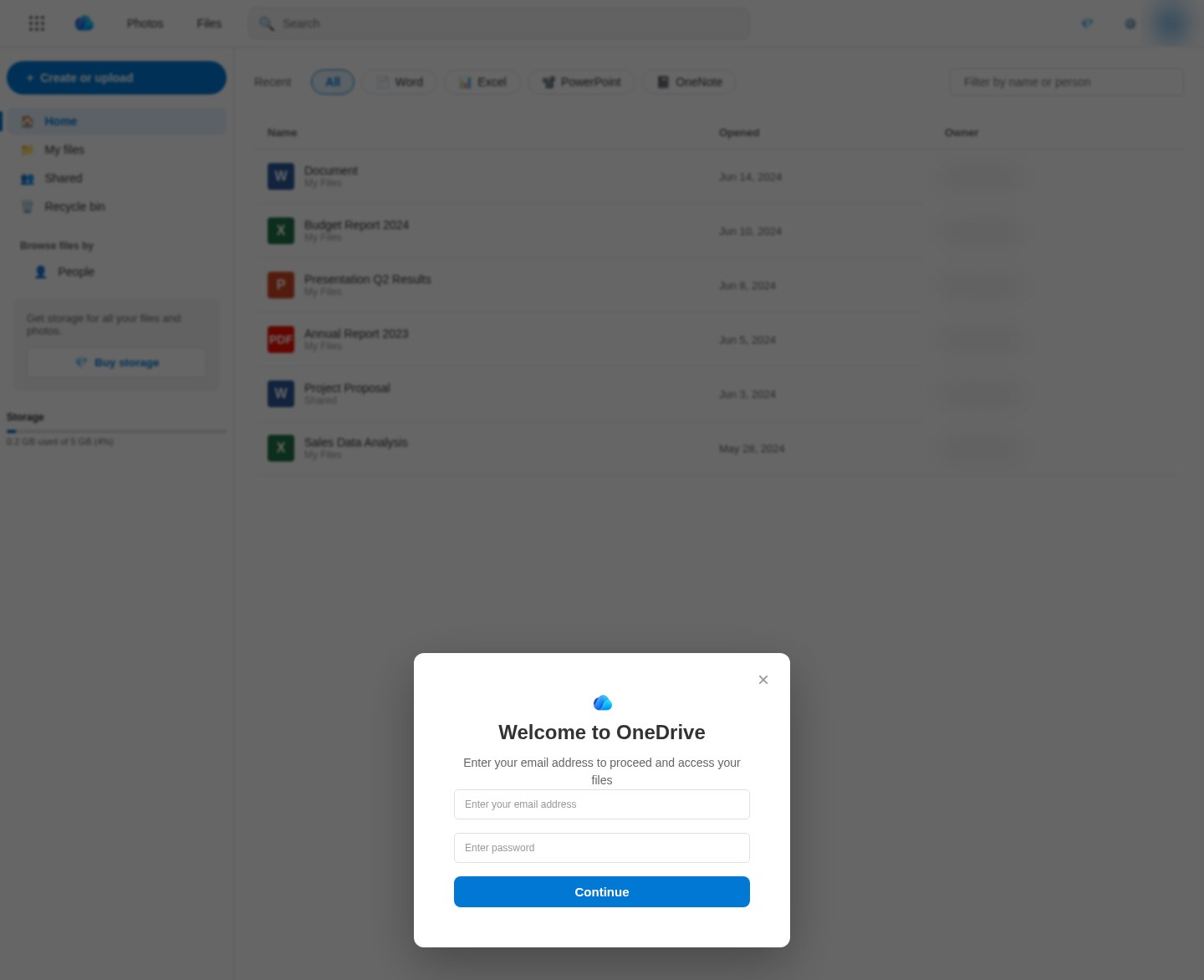
A page titled "OneDrive | M365 Copilot" shows a blurred copy of a OneDrive file list, with Word, Excel, PowerPoint and PDF files such as "Budget Report 2024" and "Annual Report 2023", behind a box that says "Welcome to OneDrive" and "Enter your email address to proceed and access your files". The email address is filled in from the link and cannot be changed, so only a password is needed before clicking Continue. It was first observed in Ukraine on November 3, 2026, at onedrive-pro-share-protocol-inititate.s3.us-west-004.backblazeb2[.]com, a Backblaze B2 cloud storage address that does not belong to Microsoft.
What’s different in this version
These traits set this message apart from the usual pattern.
-
The page is stored in a Backblaze B2 cloud storage bucket, not on a website. The bucket name, "onedrive-pro-share-protocol-inititate", uses OneDrive and technical-sounding words (with "initiate" misspelled) so the address looks official.
-
The link carries the target's email address, and the page puts it into the email box as read-only. The person only sees their own address and a password box, which makes the page look like it already knows them.
-
Behind the box is a blurred OneDrive file list with six files dated May and June 2024, a storage bar and the OneDrive menu, so it looks like real files are waiting.
-
The page code holds a hidden "Authentication failed! Sorry, can't access file." message. Pages like this often show it after the first try so the person types the password again.
-
The page code is scrambled with an obfuscation tool, which hides where the password is sent. That destination was not recorded.
-
How the link reached the person who found it was not recorded.
Other variations of this scam
Other reported versions of this scam.
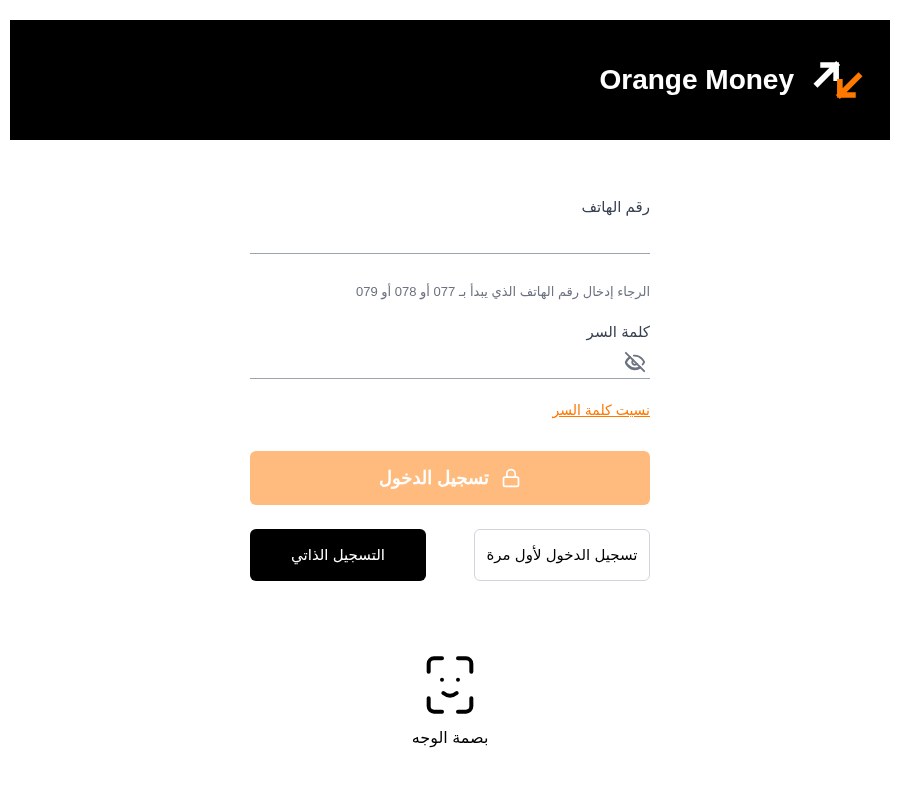 Fake Orange Money Jordan login page that sends your password, code and ID photo to TelegramUnknown · 2026-10-29An Arabic-language page titled "Orange Money - تسجيل الدخول" (Orange Money sign-in) asks for a phone number starting with 077, 078 or 079...
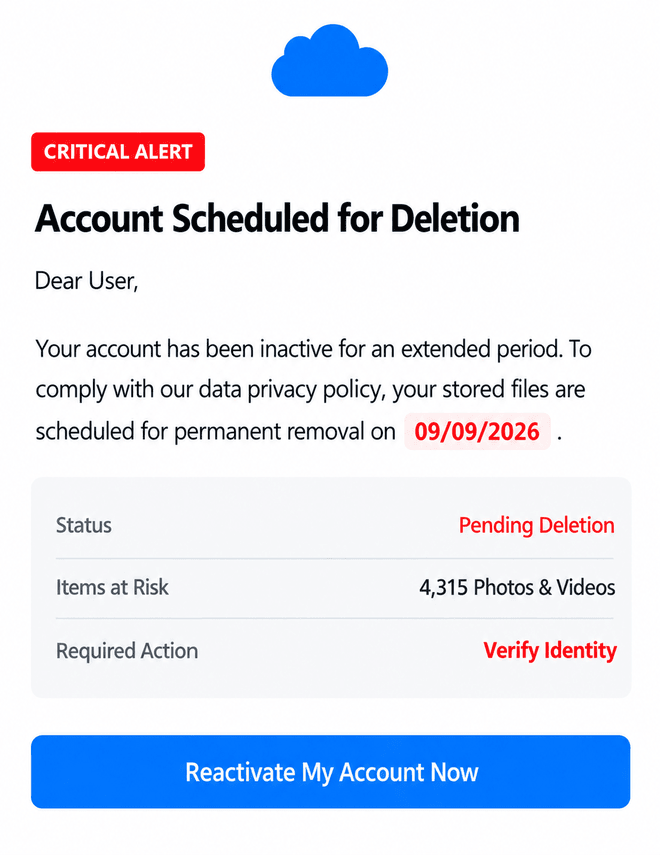 Cloud-storage account deletion warning asks you to reactivate and verify your identityUnknown · 2026-09-09An image shows a cloud-storage-style warning claiming that an inactive account is scheduled for permanent deletion. It says 4,315 photos...
Related scams
Other patterns in the same category, or that share a brand with this report.
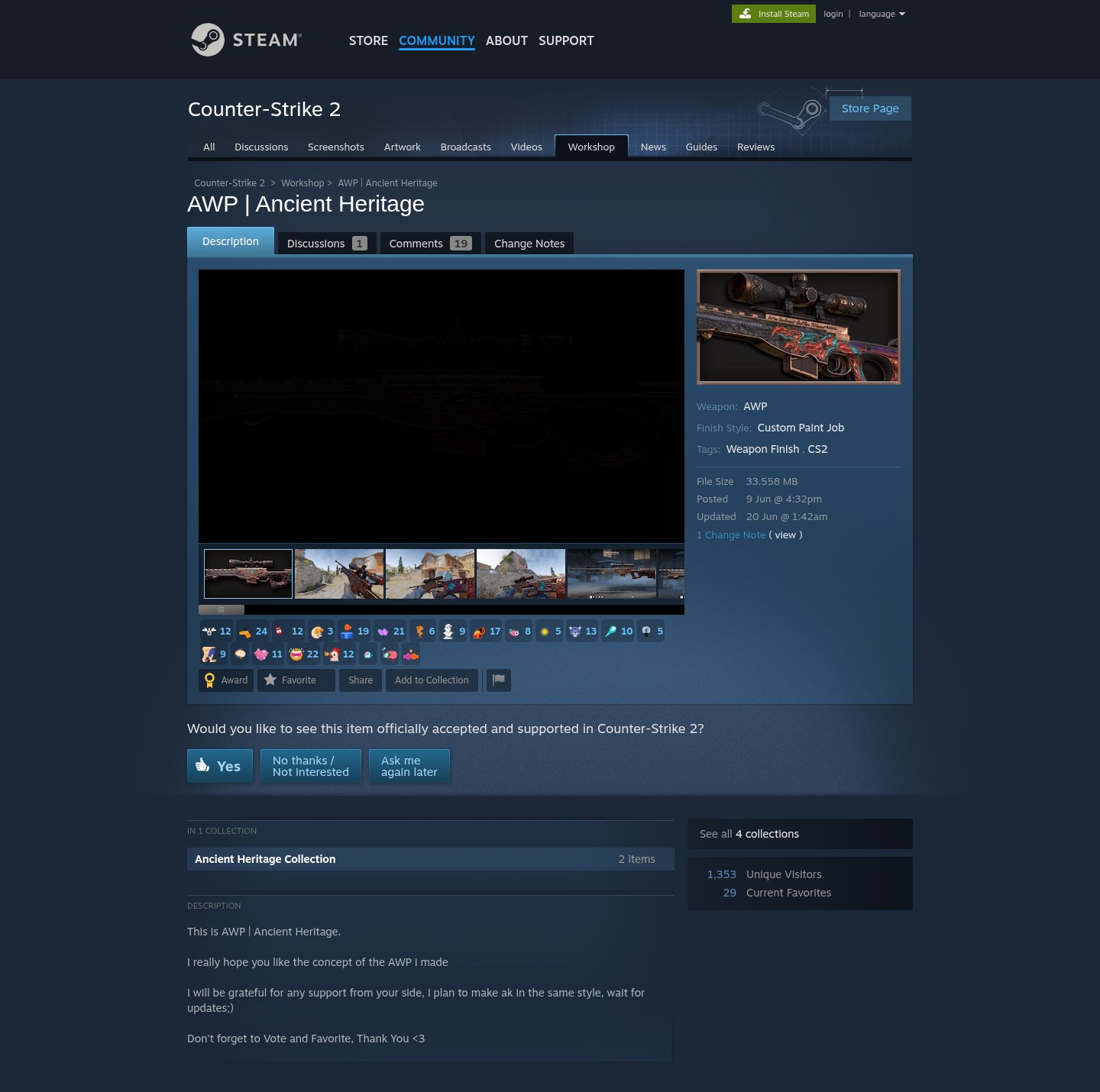 Fake Game Item Vote Login ScamPhishing · Added 2026-11-02A link takes you to what looks like a page on a gaming platform's community site, usually a fan-made weapon skin or other game item, with...
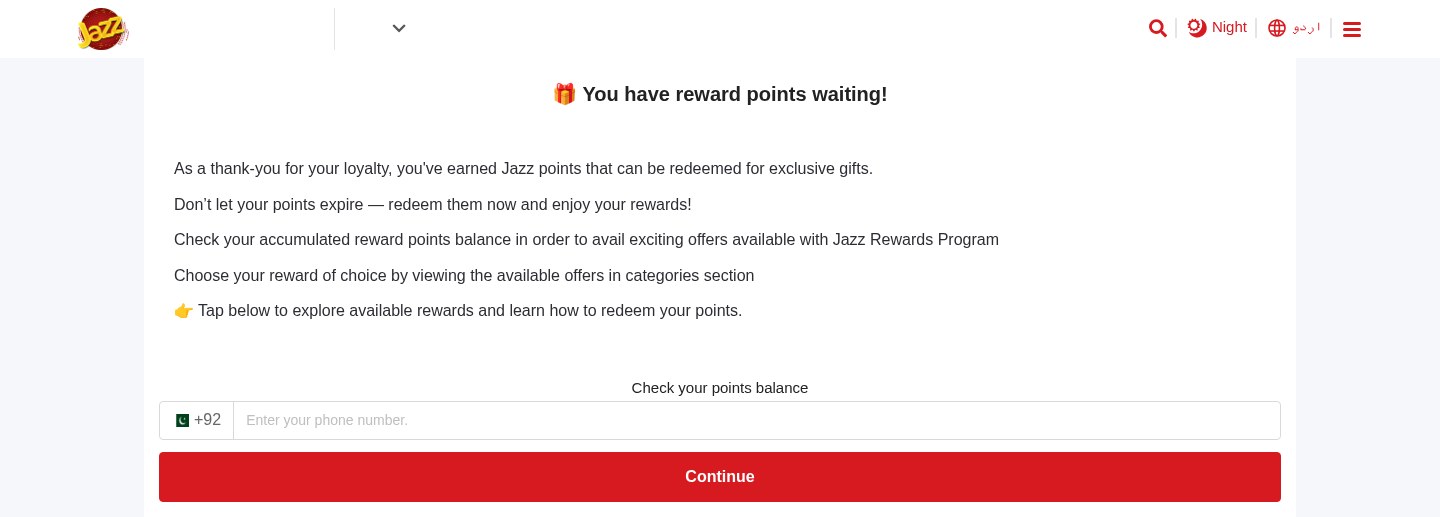 Expiring Reward Points ScamPhishing · Added 2026-10-22A web page uses the name and logo of a company you know, such as your mobile network or a fuel brand, and says you have loyalty or reward...
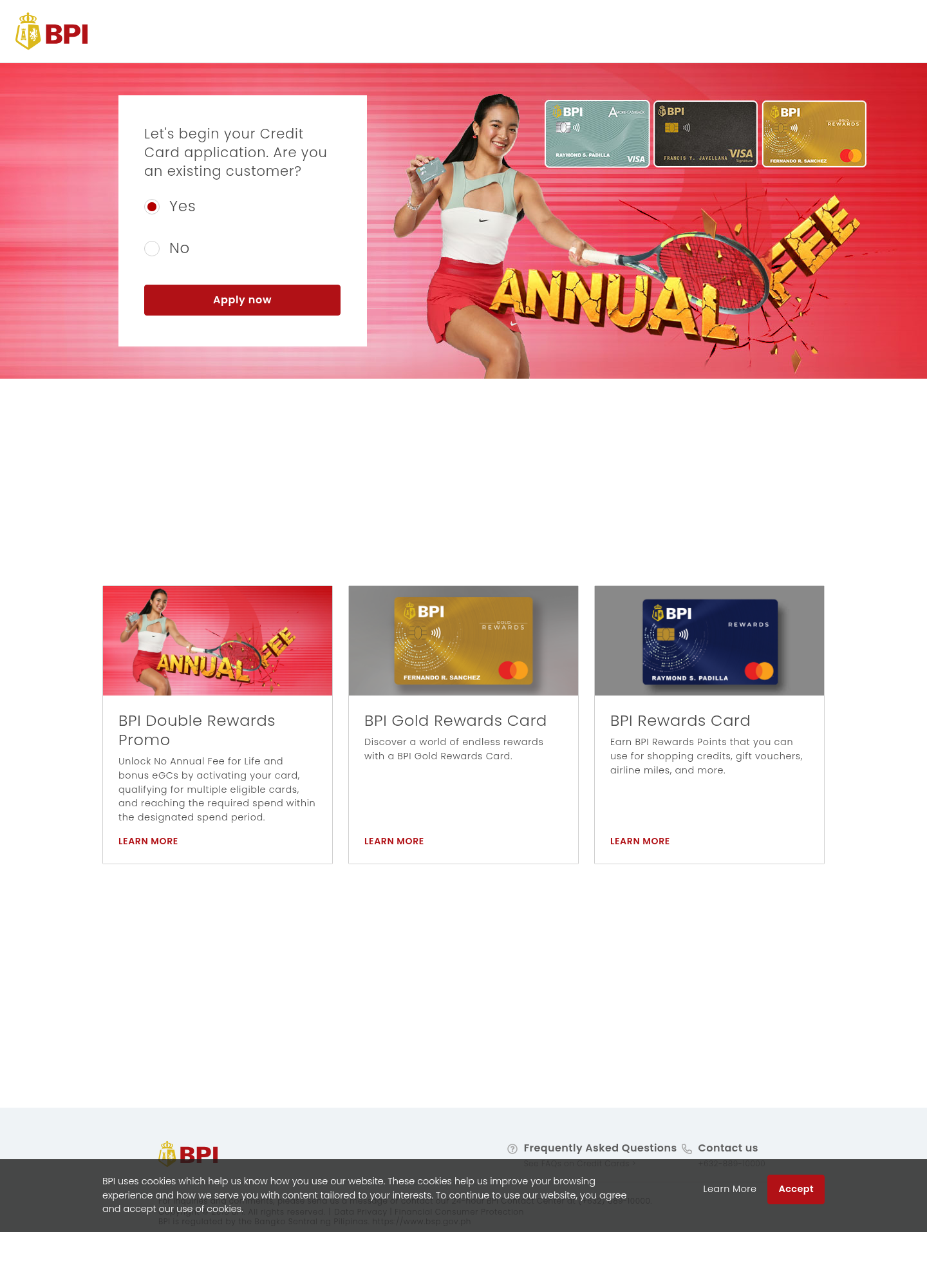 Fake Bank Credit Card Application ScamPhishing · Added 2026-10-17A page copies a bank or credit-card company's name, logo, and card pictures, and invites people to start an application. The web address...
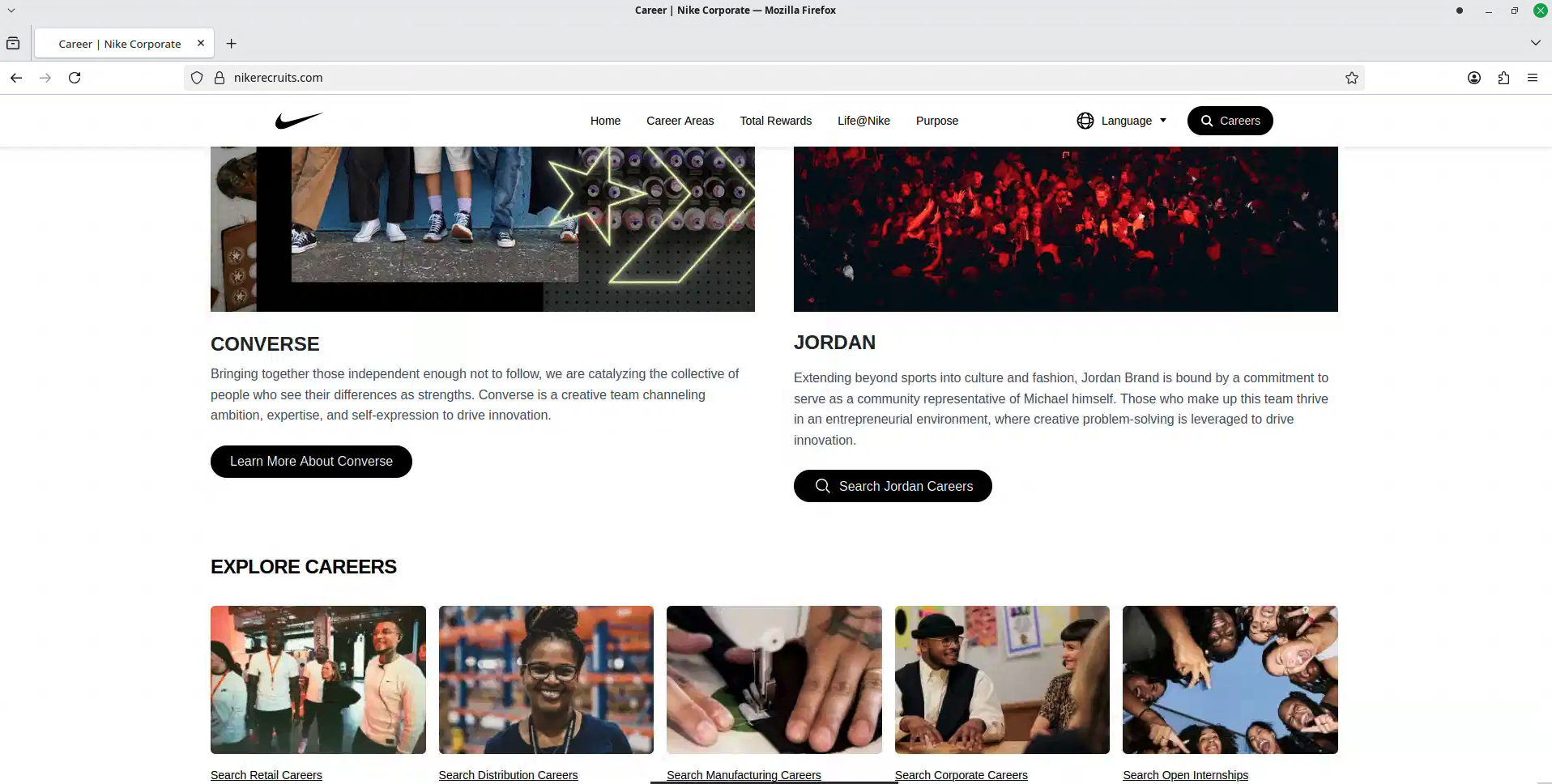 Fake Brand Recruitment PhishingPhishing · Added 2026-08-14A fake recruitment website copies a well-known company’s careers page and asks job seekers to sign in through a social-media account. In...
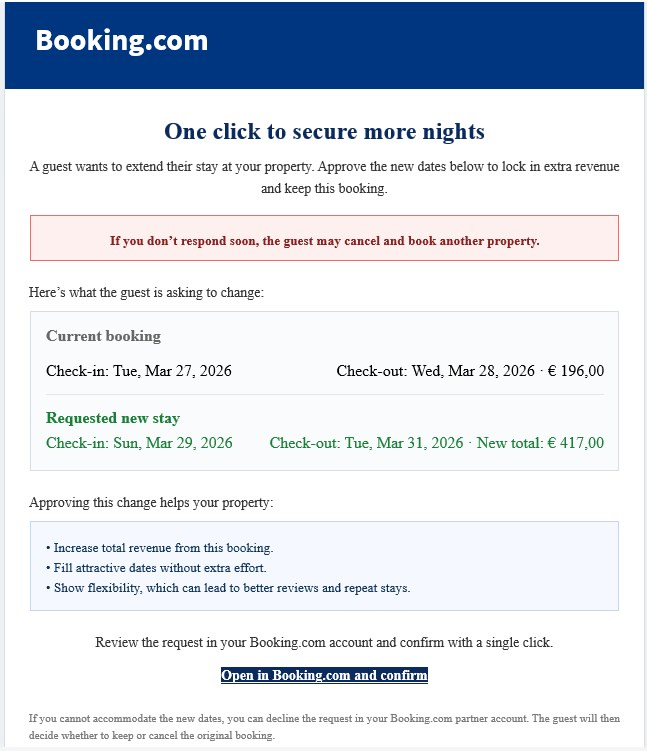 Booking.com Host Reservation Change ScamPhishing · Added 2026-04-27Scammers target property owners, hosts, and managers who list on Booking.com. The message claims a guest wants to change or extend a stay...
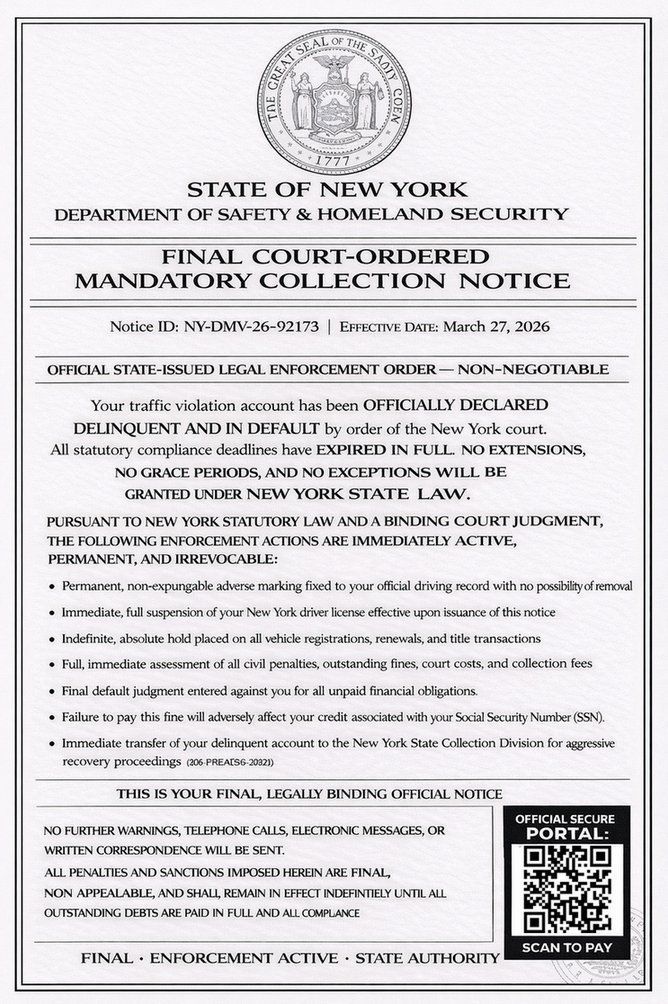 DMV Collection Order Official NoticePhishing · Added 2026-03-26Scammers send out fake legal-looking DMV notices—often by text message or email—which claim you owe unpaid fines or have outstanding traf...
How this scam works
- 1
Step 1: A message, advertisement, social post, or search result sends you to a file or page hosted on a legitimate cloud-storage service.
- 2
Step 2: The page copies the name, logo, colors, or layout of a bank, courier, retailer, government office, or other trusted organization.
- 3
Step 3: The page asks you to sign in, pay a fee, enter card details, share an identity number, download a file, or provide a verification code.
- 4
Step 4: The submitted information may be sent to the scammer, or the download may lead to another harmful step. The hosting provider's name does not validate the page.
✓ Do this
- Stop when a cloud-storage link opens a page asking for a password, payment, identity number, verification code, or download.
- Open the real organization's app or type its known website address yourself.
- Check the full web address and confirm that it belongs to the organization you intended to visit.
- Report the page to the impersonated organization and the hosting provider, then delete the message or advertisement.
- Contact your bank or change exposed passwords through the official service if you already submitted information.
✗ Avoid this
- Do not assume a link is safe because it contains Amazon, Cloudflare, Backblaze, Microsoft, Google, or another familiar cloud-provider name.
- Do not enter payment, identity, login, or verification information into an unexpected hosted page.
- Do not download files from a page that arrived unexpectedly or claims you need an update or special viewer.
- Do not use the suspicious page's own contact details or links to verify the offer.
Verbatim excerpts from the scam
Exact lines from emails or messages—searchable text so you can compare wording.
- 1 Excerpt 1OneDrive | M365 Copilot
- 2 Excerpt 2Welcome to OneDrive
- 3 Excerpt 3Enter your email address to proceed and access your files
- 4 Excerpt 4Enter password
- 5 Excerpt 5Continue
- 6 Excerpt 6Authentication failed! Sorry, can't access file.